Some documents have to look exactly the way they look. A government form. A branded contract your legal team signed off on. A lease with formatting nobody wants to touch.
Until now, making one of those fillable in DoxFlowy meant rebuilding it from scratch in our editor.
That changes today.
We’ve launched a new PDF workflow editor that lets you build a complete document workflow right on top of your PDF. The original layout stays exactly as it is. It’s a PDF.
Get rid of manual repetitive paperwork with robust document automation
LEARN MORE
You add fillable tags (fields), logic, and tags on top. Here’s how it works, and why it’s one of the features we’re most excited about in this release.
The old way, and why it was a pain
Yes, I’ll be the first to admit that certain processes were painful. This
Before this, DoxFlowy gave you multiple paths, but none of them allowed you to edit PDFs as part of an automated document workflow.
You could build a document from scratch in our editor, you could upload a PDF and it would be converted to our editor format (which could turn out poorly if the document wasn’t well formatted), you could upload a Word or TXT document, or you could upload a PDF to collect signatures.
All are useful in different ways.
But if you had a PDF that needed real data collection, not just a signature, you were stuck. Your only option was to rebuild the whole thing by hand. Rebuilding a pixel-perfect document or form is slow, and the result rarely matches the original. You can read more about preparing a document for signing if you want the background.
Upload a PDF, land in the editor
Now when you upload a PDF into a workflow, it routes straight to the PDF workflow editor. There’s no extra setup and no mode to pick. Your document opens with its formatting fully intact, ready for you to start adding tags.
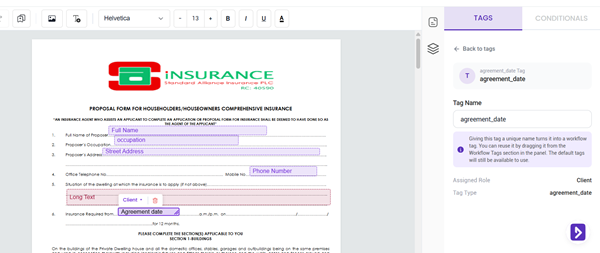
So the thing you upload is the thing your recipients see. No conversion surprises, no shifted fonts, no broken spacing. What you designed is what they get.
This also makes it possible to create automations on top of official documentation that cannot be changed. Think official purchase agreements provided by the state, tax forms, insurance documentation, etc.
Drag, drop, done
Adding tags is drag and drop. Drop a text tag where someone needs to type. Drop a checkbox where they pick an option. You can even drop an image onto the page, like a logo, a seal, or a photo.
Every tag lands at exact coordinates, so your layout stays clean no matter how many you add. Text tags support formatting too, which means the filled-in answer looks like it belongs on the page. No mismatched fonts, no text spilling outside the lines.
Checkboxes are their own little workhorse here. If you’ve used them before, the checkbox tag works the way you’d expect, now placed exactly where you want it on the page.
Document and customer insights at your fingertips
LEARN MORE
Your tags build the form
Here’s the part that ties everything together. The tags you place don’t just sit on the PDF. They drive the form your recipient fills out.
When you drop a tag onto the document, it becomes a question in the end-user form. Your recipient answers the question, and their response flows back onto the PDF at the exact spot you chose.
You design once, on the document, and the form takes care of itself.
You stay in control of the order, too. When you customize the workflow form, you arrange the questions in whatever sequence makes sense for the person filling them out. The layout on the page and the order of the questions are two separate decisions, and both are yours.
You can take it a step further by branding the form to perfectly match your business. Logo, fonts, colors, etc. are all available for you to customize.
Add logic so the document reacts
Real documents aren’t one-size-fits-all. A section might only apply to contractors. A follow-up question might only matter if someone answered yes.
The PDF editor uses the same conditional logic engine as our create-from-scratch editor. You can show or hide tags based on earlier answers, so the document adapts to each person instead of asking everyone everything.
One thing to note is that, because it’s a PDF document, you won’t be able to add or remove entire blocks of text. That’s one of the core limitations of using PDF documents.
That keeps your forms short for the people filling them, and it keeps your finished documents clean.
One thing to note is that, because it’s a PDF document, you won’t be able to add or remove entire blocks of text. That’s one of the core limitations of using PDF documents. If that’s important to you, consider using the other paths of creating documents like editing from scratch or uploading DOCX files.
Tags, including the new workflow tags
The editor plugs into tags, the placeholders that pull answers into your document. You get default tags we provide, custom tags from your personal library (which you create yourself), and the new workflow tags scoped to this specific workflow.
Take advantage of AI-powered document drafting to move 4X faster
LEARN MORE
Workflow tags are especially handy in the PDF editor. Use them for tags that only matter inside this one workflow, so you don’t clutter your library with one-offs you’ll never reuse. We wrote a whole post on how workflow tags keep your tag list clean.
A quick example
Say you manage rental properties. You have a standard lease your attorney approved, and you can’t change a comma of it. Every new tenant needs the same lease, filled in with their details and signed.
In the old world, you’d rebuild that lease in the editor and hope you did it well enough for the formatting to hold. Now you upload the approved PDF, drop text tags onto the blanks for name, unit, and rent, add a checkbox for the pet clause, and place a signature tag at the bottom.
You set a rule so the pet deposit tag only appears when the tenant checks the pet box. Then you send it. The tenant fills out a clean form, their answers land on the lease exactly where they belong, and you get back a signed document that looks like your lawyer wrote it. They did.
Why this matters
The PDF workflow editor closes a real gap. You no longer have to choose between a document that looks right and a document that collects data. You get both, in one place.
Think about all the forms you can’t redesign:
- Tax and government forms with a fixed, official layout
- Application and intake packets that have to match a standard
- Compliance documents where every box sits in a regulated spot
- Branded contracts your team already approved
Now you can make any of them fillable, add logic, collect the data, and route the whole thing through signing, without touching the design. It’s faster to set up, cleaner for your recipients, and the finished document looks exactly like it should.
Try it out
Upload a PDF to a new workflow and watch it open in the editor. If you want the bigger picture of everything in this release, here’s the full DoxFlowy v2.0.0 roundup. And if you’re not on DoxFlowy yet, start a free trial and build your first PDF workflow today.