
Tags are one of the quiet superpowers in DoxFlowy. They’re the placeholders that turn a static document into a fillable one, pulling each person’s answers into the right spot. They’re also the thing that, left unchecked, slowly clutters your account. This release fixes that with a new kind of tag, and it’s a bigger deal than it sounds.
If you build a lot of workflows, this one’s for you. Here’s the problem workflow tags solve, and how to use them.
A quick refresher on tags
Before this release, DoxFlowy had two kinds of tags. Default tags, which we provide out of the box for common fields. And custom tags, which you create yourself for anything we don’t cover. Both let you collect a piece of information once and drop it wherever it belongs in your document.
Get rid of manual repetitive paperwork with robust document automation
LEARN MORE
Custom tags are powerful, and that’s exactly where the trouble started.
The tag sprawl problem
Here’s the catch with custom tags. They live in your personal tag library, which means every custom tag you’ve ever made shows up as an option in every workflow you build. That’s convenient when you genuinely reuse a tag. It’s a headache when you don’t.
Picture it. You build a workflow and create ten custom tags for that one document. Then you build five more workflows, each with its own ten. Suddenly, you’re carrying fifty custom tags, and all fifty appear in the picker for every workflow, including the ones where forty-nine of them make no sense.
The list gets longer the more you use the product. That’s backwards. Our most active power users end up with the messiest tag picker, hunting through a pile of one-offs to find the one tag they need right now.
Enter workflow tags
Workflow tags give you a second, smaller scope. Instead of every tag living in your global library, a workflow tag belongs to the single workflow you made it in. It does its job there, and it doesn’t crowd the picker everywhere else.
That turns one decision into two clean options. Reuse a tag across many documents? Make it a custom tag, and it stays in your library where you can grab it anytime. Need a tag just for this one workflow? Make it a workflow tag, and it stays put.
The result is a tag picker that stays relevant no matter how many workflows you create. You see the handful of tags that matter here, not the running total of everything you’ve ever made.
Document and customer insights at your fingertips
LEARN MORE
How to decide which to use
The rule of thumb is simple. Ask whether you’ll use the tag again somewhere else.
- Reused often, like a property address or title: make it a custom tag
- Specific to one workflow, like a one-off reference number: make it a workflow tag
When in doubt, lean toward a workflow tag. It’s easy to keep things tidy by default and promote a tag to your library later if it turns out you need it everywhere. The opposite, digging a permanent tag back out of a cluttered library, is the annoying direction.
Built for multi-document workflows
Workflow tags really shine when a workflow holds more than one document. A workflow tag can be reused across every document in that package, so a value entered once populates all of them. That’s what makes multi-document workflows feel seamless instead of repetitive.
Your recipient types their name once, and it lands on every document in the workflow that needs it, without that tag leaking into the picker of unrelated workflows. Local where it should be local, shared where it should be shared.
They plug into logic, too
Workflow tags aren’t just for filling in blanks. They work with conditional logic in the new PDF workflow editor and the original document editor, so you can show or hide parts of a document based on what someone enters. Because the tag is scoped to the workflow, the logic that depends on it is self-contained and easy to work with.
Cleaner behavior under the hood
Making tags scoped properly meant giving each one its own identity rather than pointing back at a shared original. We did a lot of careful work here so that renaming a tag updates it everywhere it appears, across every document in a workflow, without creating duplicates or losing values in the finished file.
You’ll also spot a small gear icon on hover, a reminder that tags can be renamed and customized. If you want the mechanics of how tags work in DoxFlowy, take a look at this tag manager article.
Take advantage of AI-powered document drafting to move 4X faster
LEARN MORE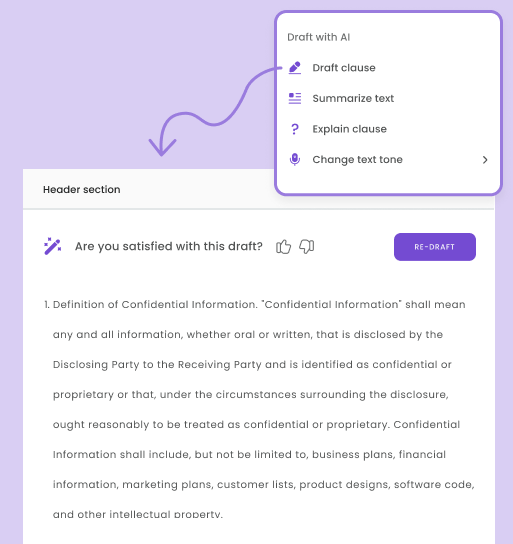
A quick example
Say you run a small agency. You reuse a client name and a signature on nearly every document, so those stay as custom tags in your library, always a click away.
Then you build a one-off onboarding workflow that needs a project code, a kickoff date, and a Slack channel. None of those will ever appear in another workflow. So you make them workflow tags. They do their job in that workflow, and your library stays clean, holding only the tags you reuse.
Why this matters
This isn’t a cosmetic tweak. It’s a structural fix that gets more valuable the more you use DoxFlowy. By giving tags the right scope, your account stays organized as it grows, instead of slowly filling with clutter you have to work around.
Good tools scale with you quietly. Workflow tags are exactly that kind of change: you’ll barely notice them on day one, and you’ll be grateful for them on day one hundred.
Try it out
Next time you build a workflow, create a workflow tag for the fields that only matter there. For the full picture of this release, read the DoxFlowy v2.0 roundup. New to DoxFlowy? Start a free trial and keep your tags tidy from day one.