Here’s a familiar story. You start with a handful of workflows and a few signature requests. It’s easy to find everything. Six months later, your list is a mile long, and finding that one client agreement means scrolling and squinting.
We rebuilt folders in DoxFlowy to put an end to that.
The new unified folder system gives you sub-folders, lets you keep different kinds of work together, and lets you share folders with the right people on your team. It’s a small-sounding feature that quietly makes the whole app easier to live in.
Here’s what changed.
Get rid of manual repetitive paperwork with robust document automation
LEARN MORE
Workflows and signature requests, together
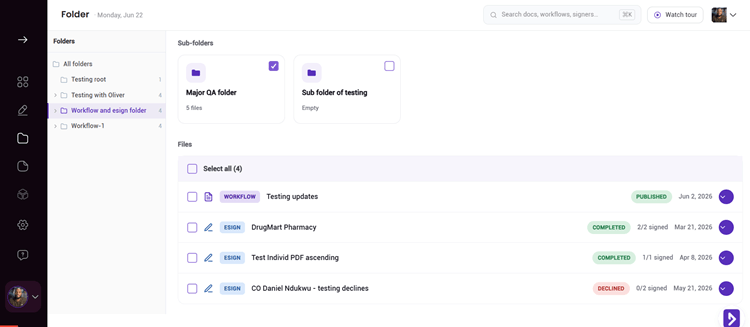
The folder system is unified for a reason. A single folder can hold both your document workflows and your eSign requests, side by side. You no longer keep two mental maps of where things live.
Quick note on how DoxFlowy thinks about documents. There aren’t loose, standalone files floating around. A generated document lives inside the workflow that created it.
When you organize folders, you’re organizing the workflows and signature requests themselves, and the documents come along for the ride. In practice, that means you file the work once, and everything it produced stays with it.
Sub-folders, one level deep
You can now nest a folder inside a folder. The structure is root, then a folder, then a sub-folder inside it. One level of nesting, which is enough to stay organized without turning into a maze you get lost in.
Think of it like a filing cabinet. The cabinet is your root. A drawer is a folder. A labeled divider inside the drawer is a sub-folder. If you put something in the wrong place, you can move a folder to the place it belongs with jumping through hoops.
One level of nesting sounds modest, but it covers the way most people organize. A category, and a few groupings inside it. Going deeper usually creates more confusion than it solves, so we stopped at the level that keeps things findable.
If you need more, we understand. Send us your use case, and we’ll see if it makes sense within the architecture of DoxFlowy.
Add to a folder without breaking stride
Filing things is now part of your normal flow, not a separate chore. From the row dropdown on your My Workflows and eSign lists, you can drop any item straight into a folder.
When you’re creating a sign request, you can set which folder documents belong to in the settings. As soon as they get signed, they’re automatically routed to the correct folder.
Document and customer insights at your fingertips
LEARN MORE
No dragging across the screen, no opening a special move screen. Find the workflow, open its menu, and choose a folder. Done.
Share folders with your team
Folders aren’t just for you. You can share a folder with specific people on your team, so the right colleagues see the right work.
Sharing comes in two levels. View-only lets someone see what’s in the folder without changing anything. Editor lets them work with the contents. These folder permissions are intentionally simple, and they’re separate from the broader role-based access control built for enterprise teams.
This is lightweight sharing for everyday collaboration, not a full permissions system to configure. You pick a person, pick view or edit, and move on.
Only the owner can delete
Sharing a folder doesn’t put your work at risk. Deletion is tied to ownership. Only the person who owns a folder can delete it, along with everything inside it, no matter what sharing level others have.
If someone you’ve shared with tries to delete the folder, they’ll get a clear notice that they don’t have permission. So you can share freely, knowing a well-meaning teammate can’t accidentally wipe out a folder full of agreements.
Personal first, shared by choice
One more thing worth being clear about. Folders are personal by default. You create them, you own them, and you decide who to share them with.
There’s no organization-wide folder that everyone drops things into. That keeps ownership clear and avoids the shared-drive chaos where nobody knows who made what or whether it’s safe to touch.
Take advantage of AI-powered document drafting to move 4X faster
LEARN MORE
A quick example
Say you handle contracts for a few big clients. You create a root-level folder for each client. Inside one client’s folder, you add a sub-folder for this year’s agreements and another for last year’s.
You share the client folder with the account manager as an editor, so they can keep it current, and with your manager as view-only, so they can check the status without changing anything. Everyone sees what they need. You stay the owner, so nothing important disappears by accident. When a new agreement comes in, it files automatically into the right folder. If you forgot to set that up, it takes one click from the row menu to file it in the right place.
Search and filters, right alongside
Folders work hand in hand with the refreshed list pages. The My Workflows and eSign lists now have search and filters built in, so you can narrow things down even before you open a folder.
Between folders for structure and search for speed, finding a specific agreement stops being a scavenger hunt. You either navigate to it or search for it, whichever is faster in the moment. Most days, that is the difference between a five-second lookup and a five-minute scroll.
Why this matters
Organization isn’t glamorous, but disorganization is expensive. Time lost searching, documents filed in the wrong place, the wrong version sent to a client. The cost adds up quietly.
The unified folder system gives you a clean, shared place for everything, with guardrails so collaboration doesn’t turn into a mess. Workflows and signature requests in one structure, nesting where you need it, and sharing that’s safe by design.
Try it out
Create a folder, nest a sub-folder inside it, and share it with a teammate. For the full picture of this release, read the DoxFlowy v2.0.0 roundup, and see how it pairs with multi-document workflows for keeping bigger projects tidy. Not on DoxFlowy yet? Start a free trial and bring some order to your documents today.